


List view: filter, group, sum and export on the same screen.
The screen below is from the sample app, published on the Online Test, with 52 sales. They are the same sales as in the PDF exported at the end of the page. Colored statuses, formatted dates and amounts, totals and filters come from a few lines of configuration.
52 sales with status, dates and totals already formatted
Dates and amounts come formatted, and the status gets a colored badge. The Registered column shows how long ago the sale came in ("1 month ago"). You also get footer totals, filters, search, export and row actions. Each column is declared on one line:
<mad-grid self per-page="15" searchable><mad-columns><mad-col field="{cliente->nome}" label="Customer" sort filter /><mad-col field="data_venda" label="Sale date" date="m/d/Y" center sort /><mad-col field="status" label="Status" center sortbadge="pago:success:Paid|pendente:warning:Pending|cancelado:danger:Canceled" /><mad-col field="itens" label="Items" center total="sum" /><mad-col field="valor_total" label="Total" right money="$" total="sum" col-filter=">=" /><mad-col field="created_at" label="Registered" transform="GridTransformer::registradaHa" /><mad-col field="{tenant->name}" label="Tenant" display-condition="GridTransformer::multiTenant" /></mad-columns></mad-grid>
Filters that stay visible while you work
The filters sit in a bar above the table. Each one appears as a tag that, when clicked, opens the right field for that data. There are 11 field types, and the bar can change layout, as you can see just below:
<mad-grid-filters style="toolbar" name="filtros"><mad-search-field name="busca" label="Search" /><mad-select-field name="status" label="Status" :items="['pago' => 'Paid', ...]" /><mad-dbcombo-field name="cliente_id" label="Customer" model="Pessoa" display="{nome}" /><mad-daterange-field name_start="dt_ini" name_end="dt_fim" label="Period" presets /><mad-number-field name="valor_min" label="Minimum amount" /></mad-grid-filters>


The same filters, six layouts
The filters can appear six ways, and you switch between them by changing a single attribute, style. The values are toolbar, chips, drawer, modal, sidebar-left and sidebar-right.


You see the active filter and the totals adjust
After applying, the tag shows the chosen value ("Status: paid"). The table fetches the data again and the footer totals follow. The filter stays there for as long as the user's session lasts.

Filter straight from the column header
Besides the bar, each filterable column has its own filter in the header. It also works on columns that come from another table, like Customer. And it can use an operator: on Total, the filter brings the values greater than or equal to what you type (col-filter=">=").


Sort with a click on the header
One click sorts the column and another reverses the order. An indicator in the header shows which column is active. Sorting happens on the server, so it applies to all the sales, not just the ones on the page.

One search for the whole table
A single field looks for the term in the text columns you choose. Here, "PIX" brings only the sales paid by Pix.

Sales grouped by salesperson, with subtotals
With two attributes, the table groups the rows. Each group shows how many records it has and its subtotals, and you can collapse a group with one click:
<mad-grid self group-by="vendedor" group-total>
Footer totals that respect the filter
Mark a column with total="sum" and the footer adds up the values. The calculation respects the filter, the search and the page you are on. Besides the sum, you can show the average, count, minimum and maximum (avg, count, min, max).

Dates that say how long ago
When the default format isn't enough, a PHP method decides what the cell shows. In the Registered column, the date becomes readable text, like "1 month ago" or "in 2 days". The method receives the value and the whole row (($value, $row)) and works for any column.
// App\Transformer\GridTransformer — generated in the Transformers panelpublic static function registradaHa(mixed $value, object $row): string{return \Carbon\Carbon::parse((string) $value)->locale('en')->diffForHumans();}Columns that only appear when they make sense
A method that answers yes or no decides whether the column appears (display-condition). Here, Tenant and Unit only appear when the app runs in multi-tenant mode. See the same table with and without those columns:
<mad-col field="{tenant->name}" label="Tenant"display-condition="GridTransformer::multiTenant" />// no-args method that returns bool — decides whether the whole column existspublic static function multiTenant(): bool { return false; }
Export to CSV, Excel or PDF
The Export button generates all three formats. The file comes out with whatever filters, search and sorting are active on the screen.

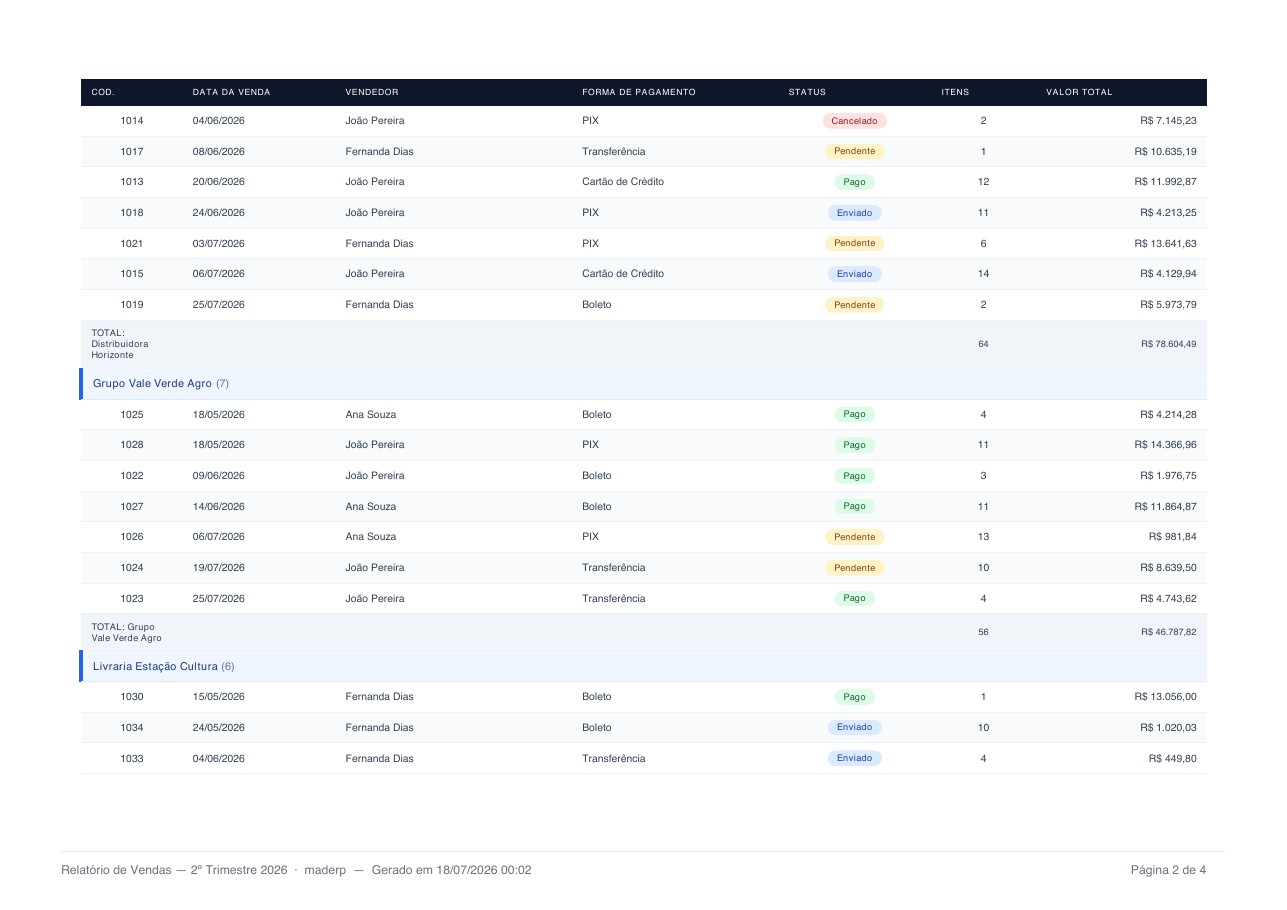
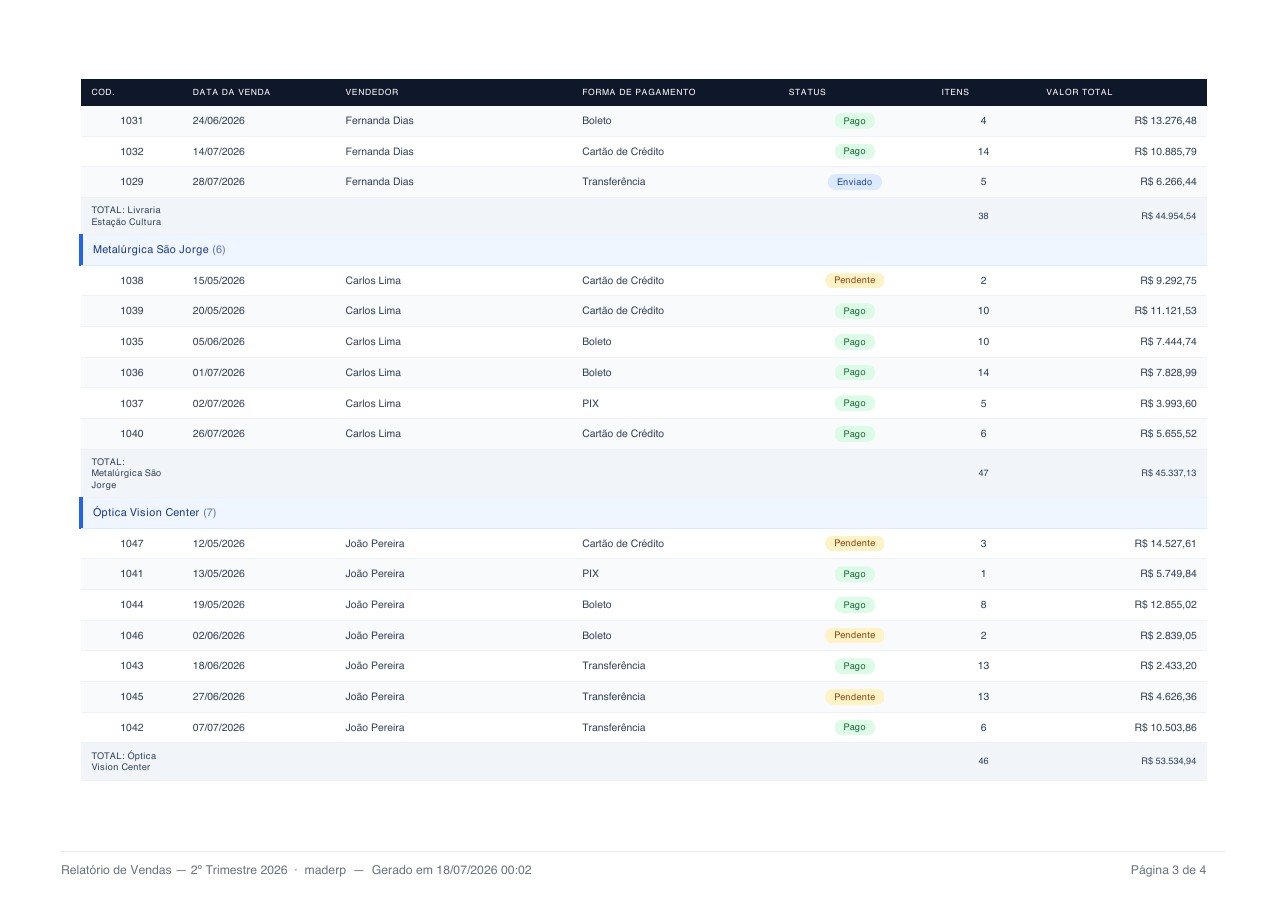
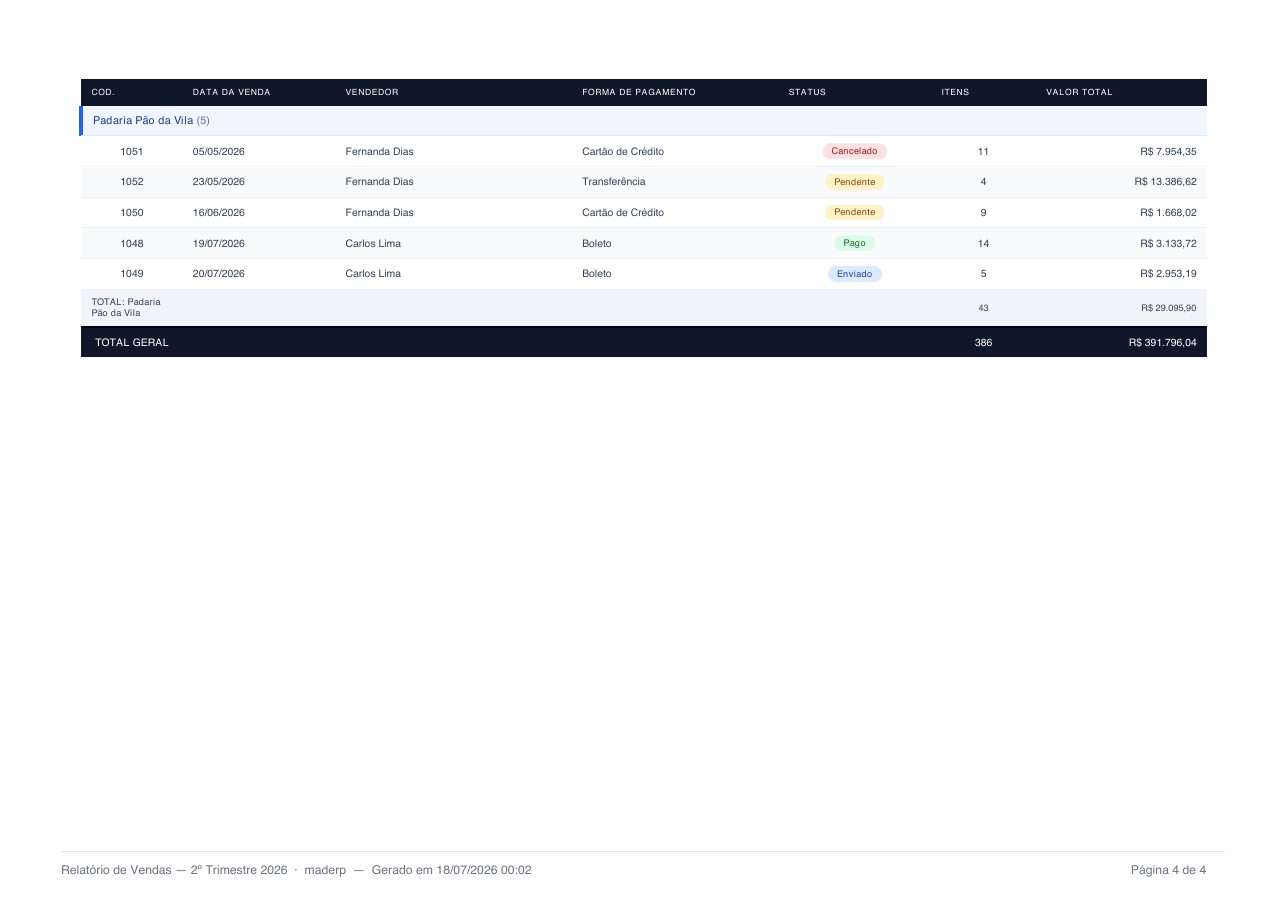
The PDF comes out ready to circulate in the company
These are the same 52 sales, exported. The PDF has the app's name at the top, the groups with subtotals, the colored status, alternating rows, the grand total and Page X of Y numbering. It runs 4 pages, and the table header repeats on each one.

Edit the value without leaving the table
In the columns you mark as editable, the value changes right there in the cell. The editor opens on a double click, on a single click, or stays always visible. There are 12 editor types:

And more
Create an account, build a screen, download the project.
No scheduled demo, no discovery call. If the Laravel that comes out doesn’t pass your team’s review, you lost an afternoon.
- Create an accountOpen beta, no credit card.
- Build a screenVisually, in code, or by asking the AI.
- Download the .zipA Laravel project that runs wherever you want.
